Log in to the system
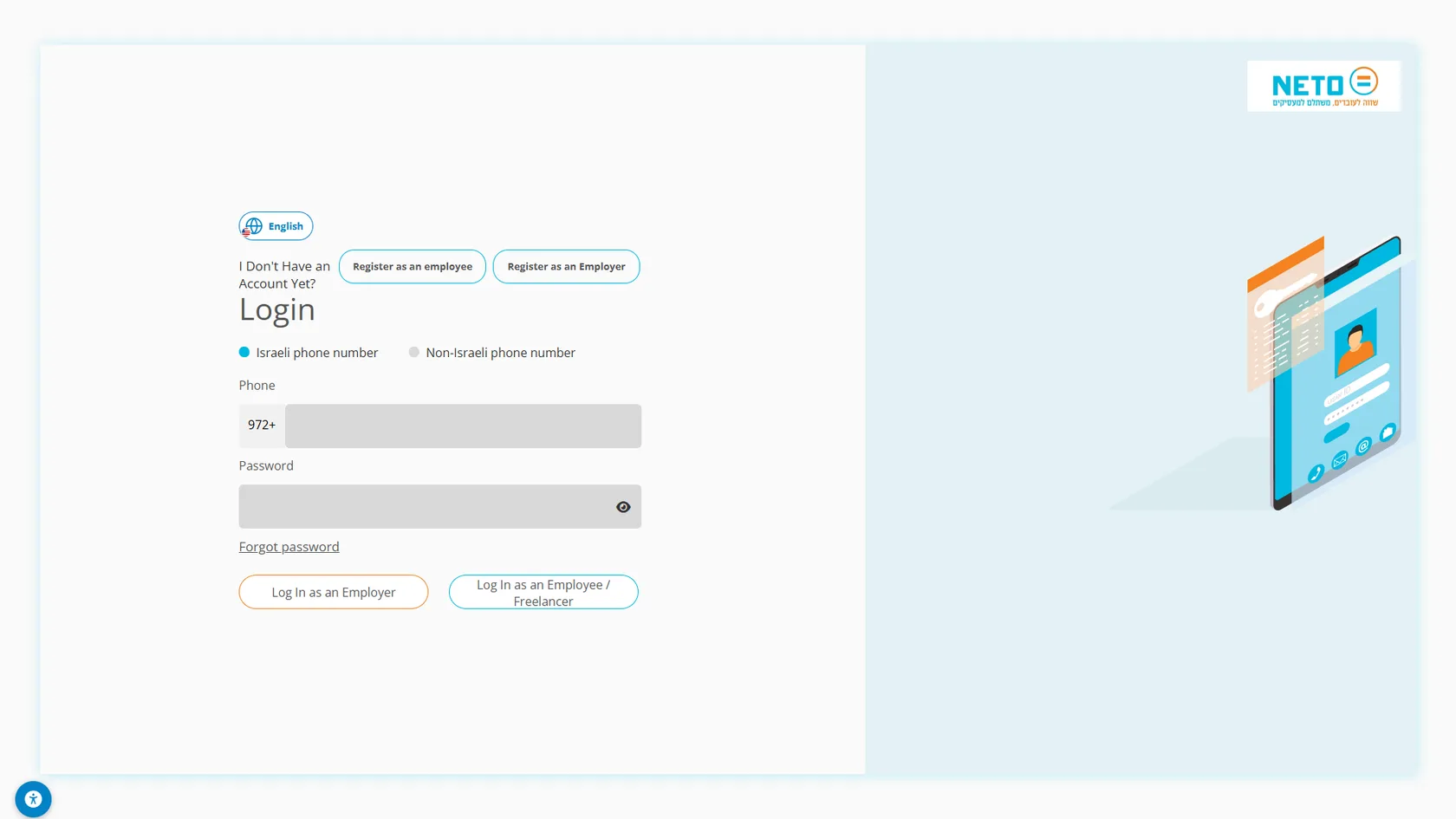
NETO sent you a message with a personal link to your worker area. Log in through the link · and land straight in your account, no complicated passwords.
Log in to your account, or sign up in a minute.
Pick whatever works for you · we're here.
Everything about NETO · transparent and available
Pick a convenient time · we'll confirm by phone/email
Congratulations! From here on, NETO is your formal employer, and your salary arrives on a proper payslip with full benefits. Ten simple steps · from your first login to your payslip. We walk you through every one of them.
Let's start · step 1NETO sent you a message with a personal link to your worker area. Log in through the link · and land straight in your account, no complicated passwords.
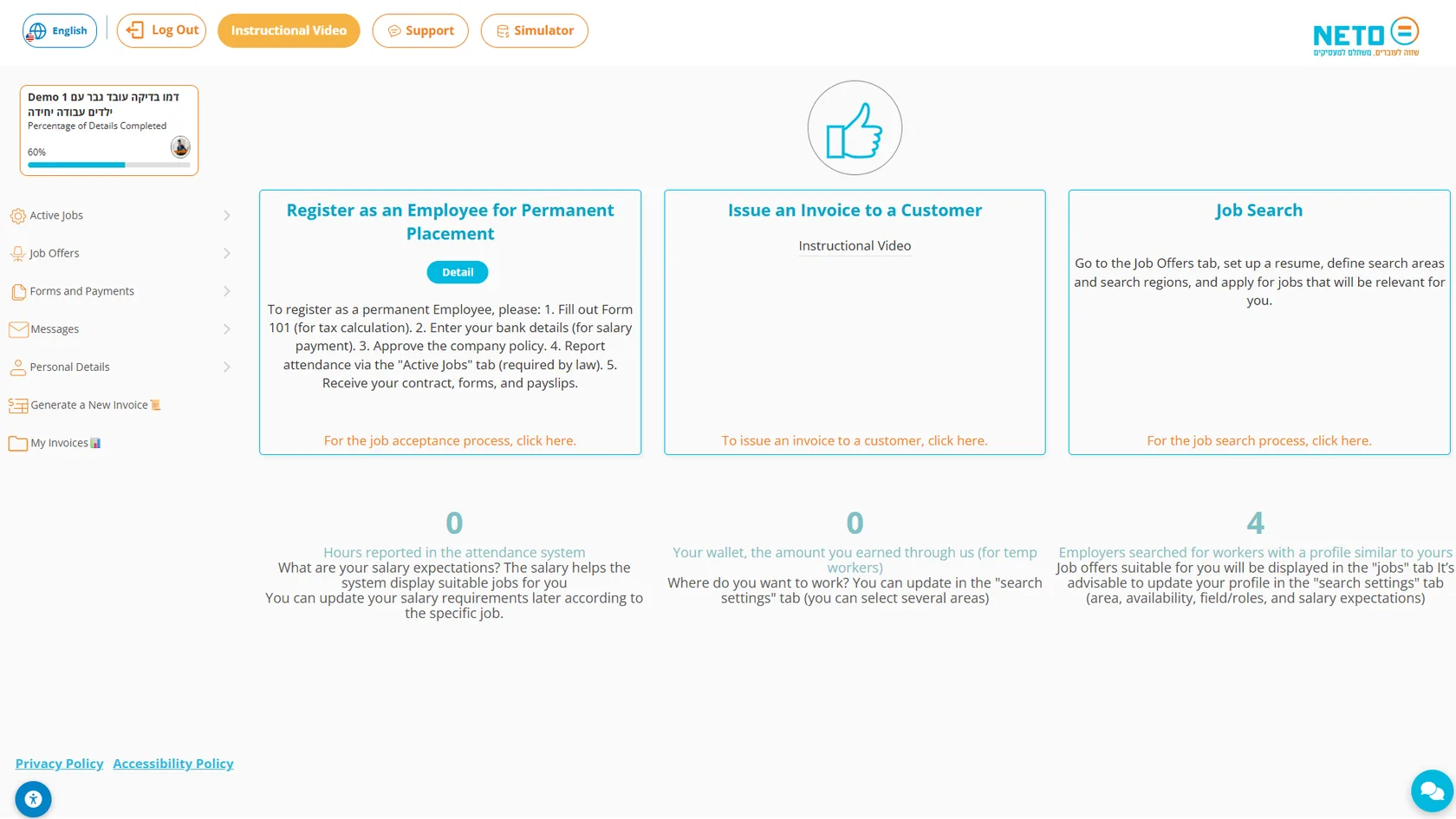
After logging in you see the dashboard: process cards (job acceptance, issuing an invoice, job search), a profile-completion bar, and a side menu with the tabs · Active Jobs, Job Offers, Forms and Payments, Messages and Personal Details.
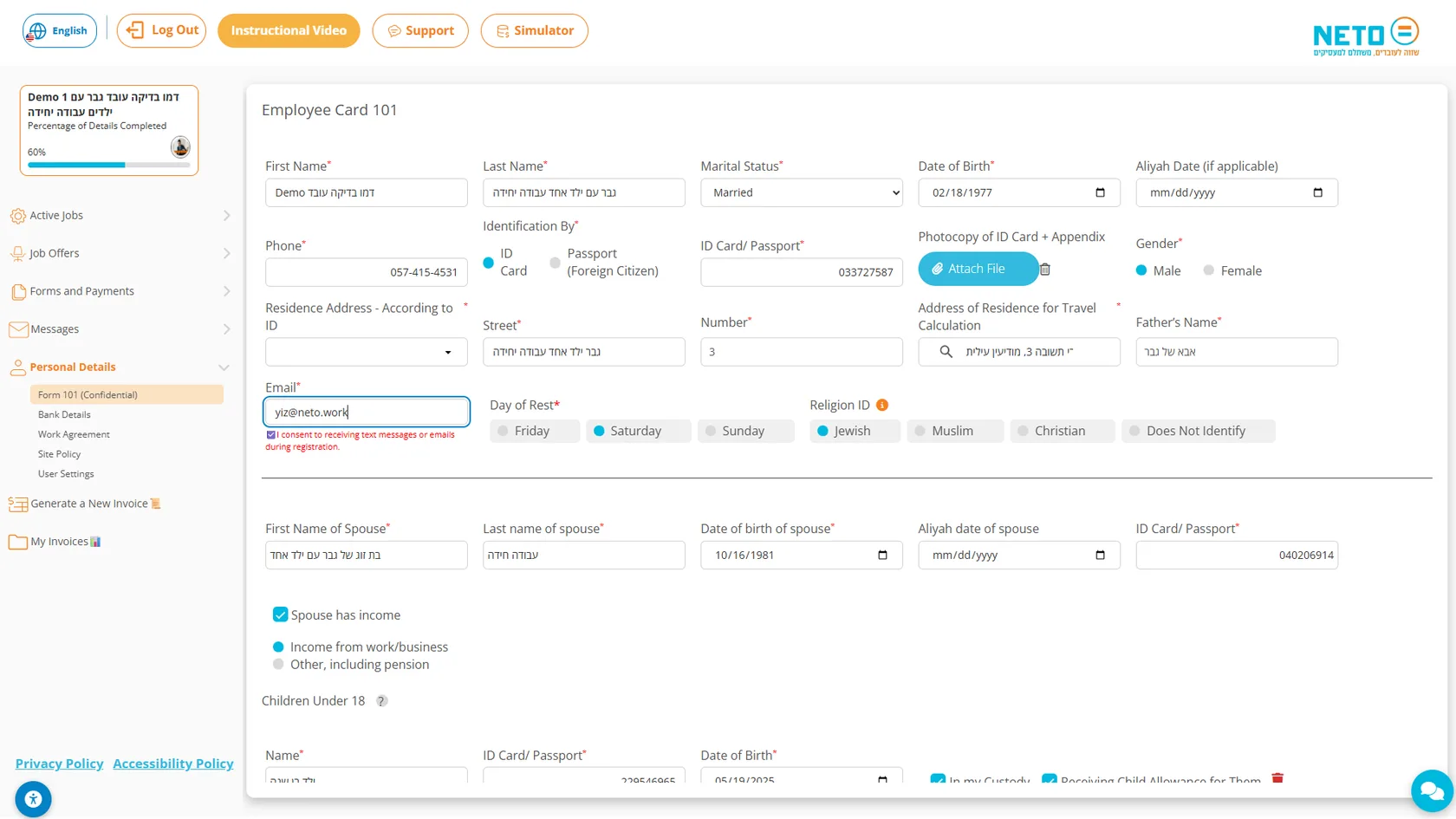
In the Personal Details menu, open Form 101. This is the employee card every salaried worker in Israel fills out · the taxes on your payslip are calculated from the details in it. Fill in your personal details, spouse and children, and confirm.
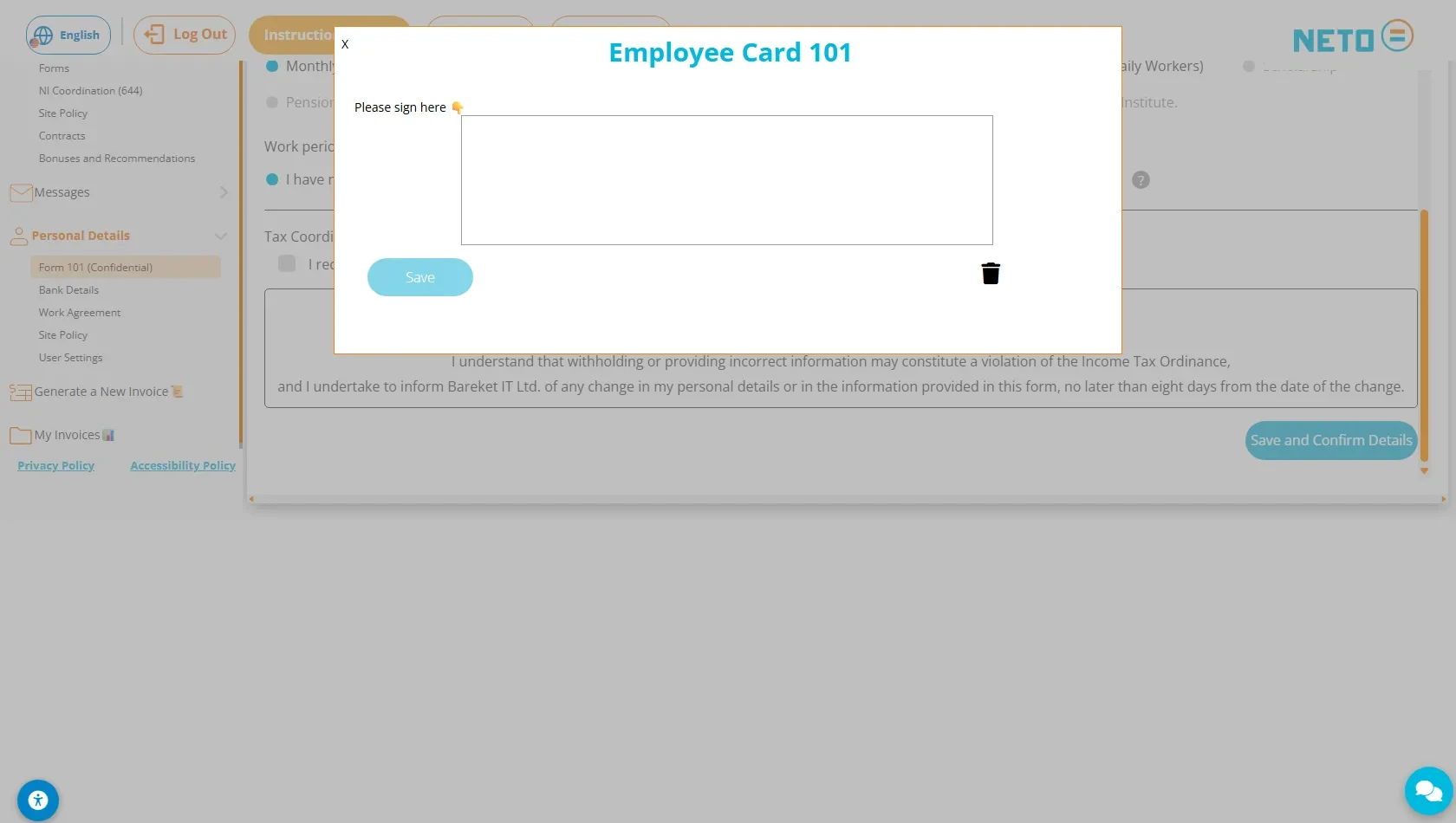
When you finish filling out the form, click "Save and Confirm Details". The system displays your completed Form 101 as a PDF with a marked signature area · sign inside the marked area, and the form is complete.
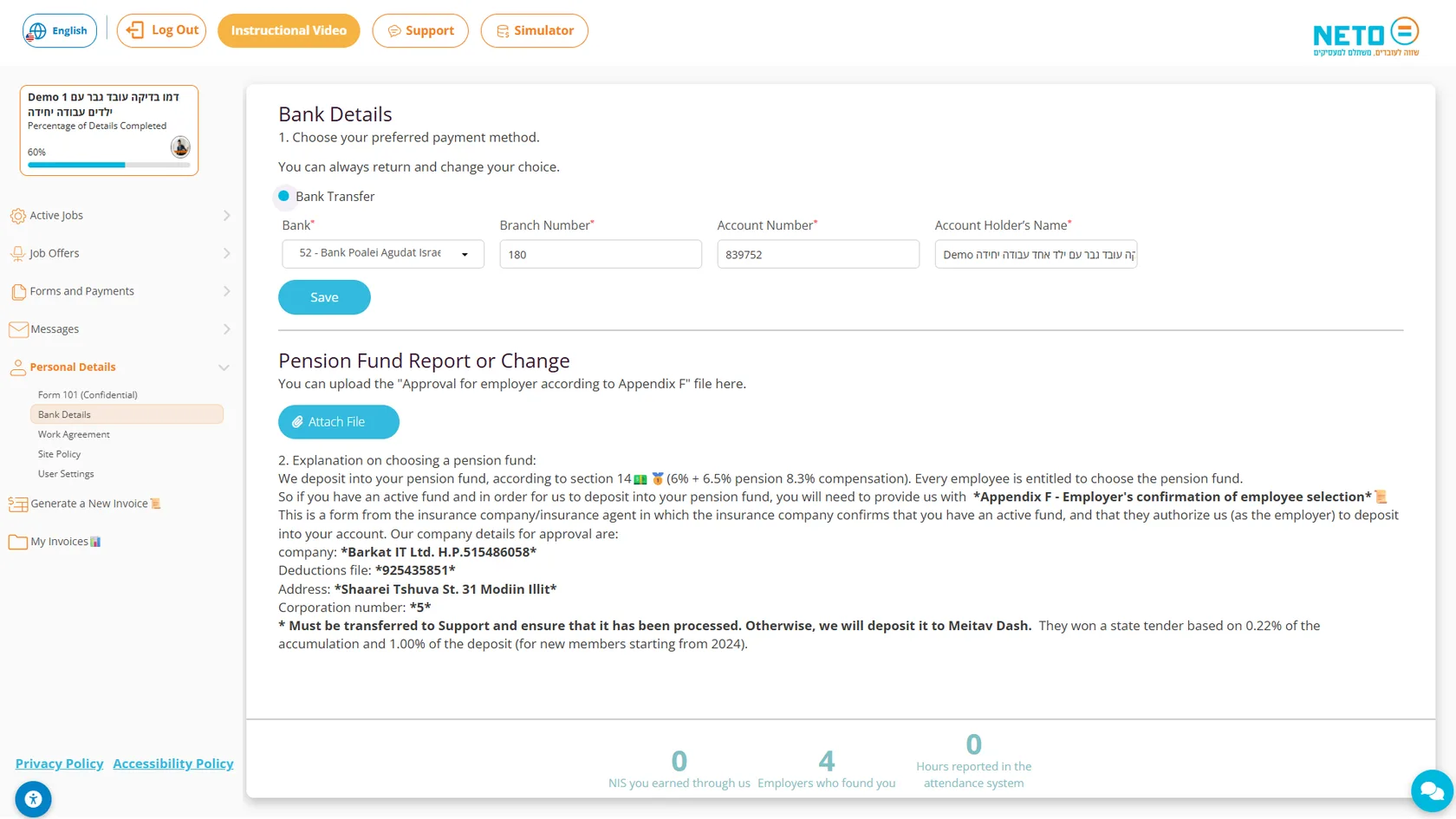
On the "Bank Details" screen, choose your preferred payment method and enter the bank, branch, account number and account holder's name · so we know where to deposit your salary. On the same screen you can also report or change a pension fund.
In the Personal Details menu, the Work Agreement screen shows the formal notice to the employee detailing the working terms · employer details, your details and the terms of the position · together with the full agreement and all its clauses.
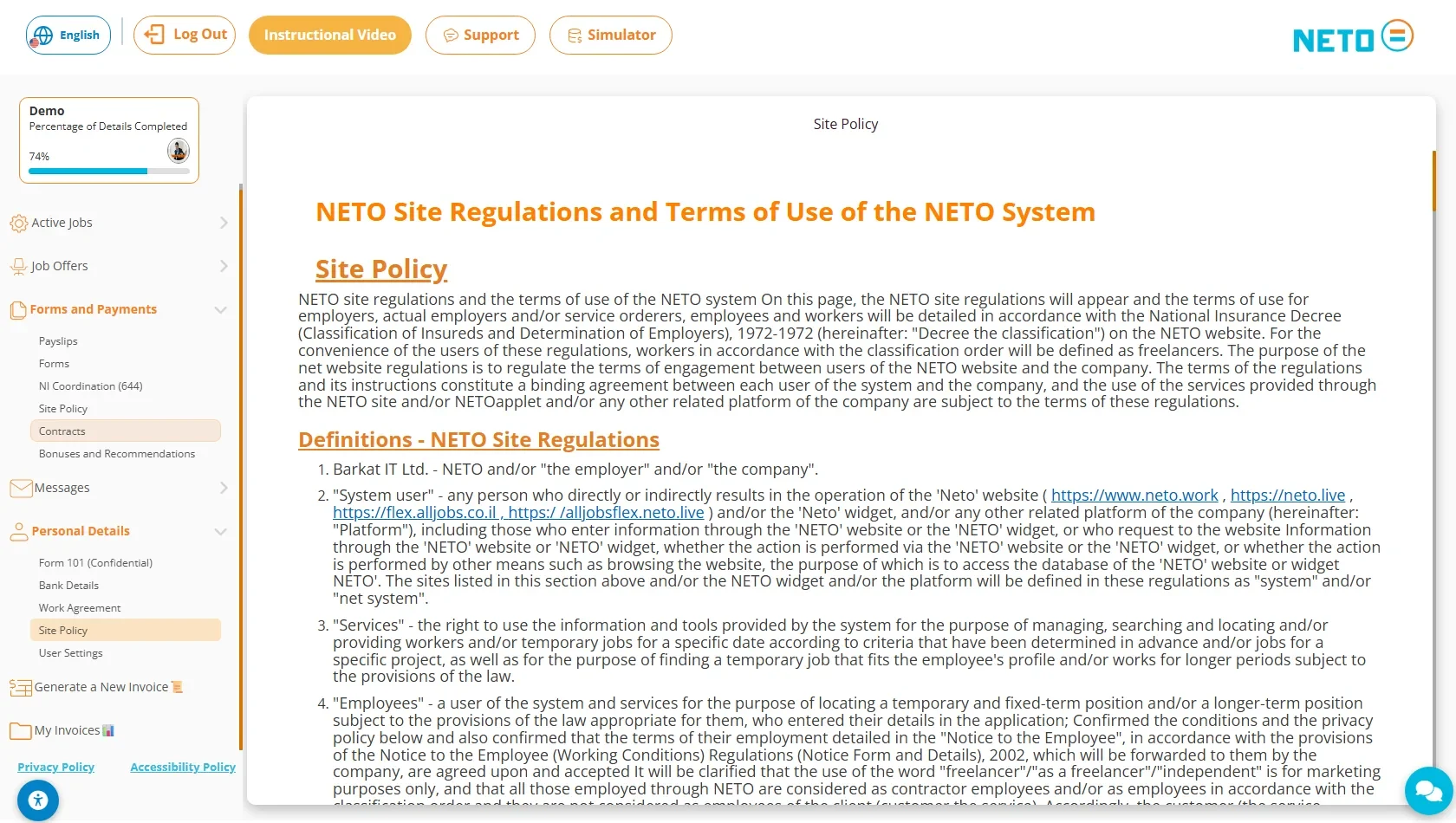
A short but important step: approve the site policy and the terms of use. It is one of the five onboarding steps shown on the registration card on the dashboard · and without it the hiring process cannot be completed.
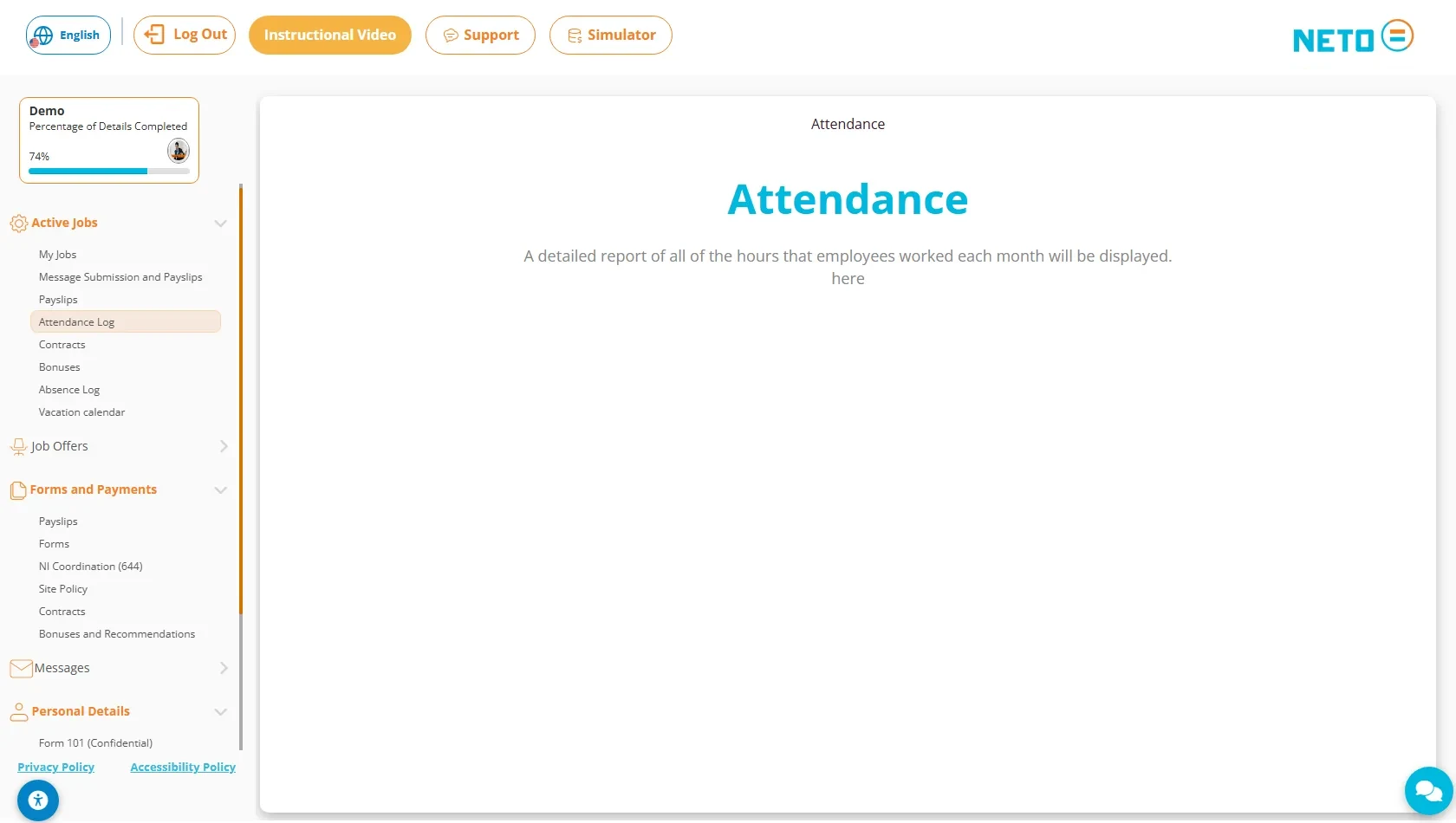
Open the Active Jobs tab and choose Attendance Log. It shows a detailed attendance report of all the hours worked in each month · and your salary is calculated from it.
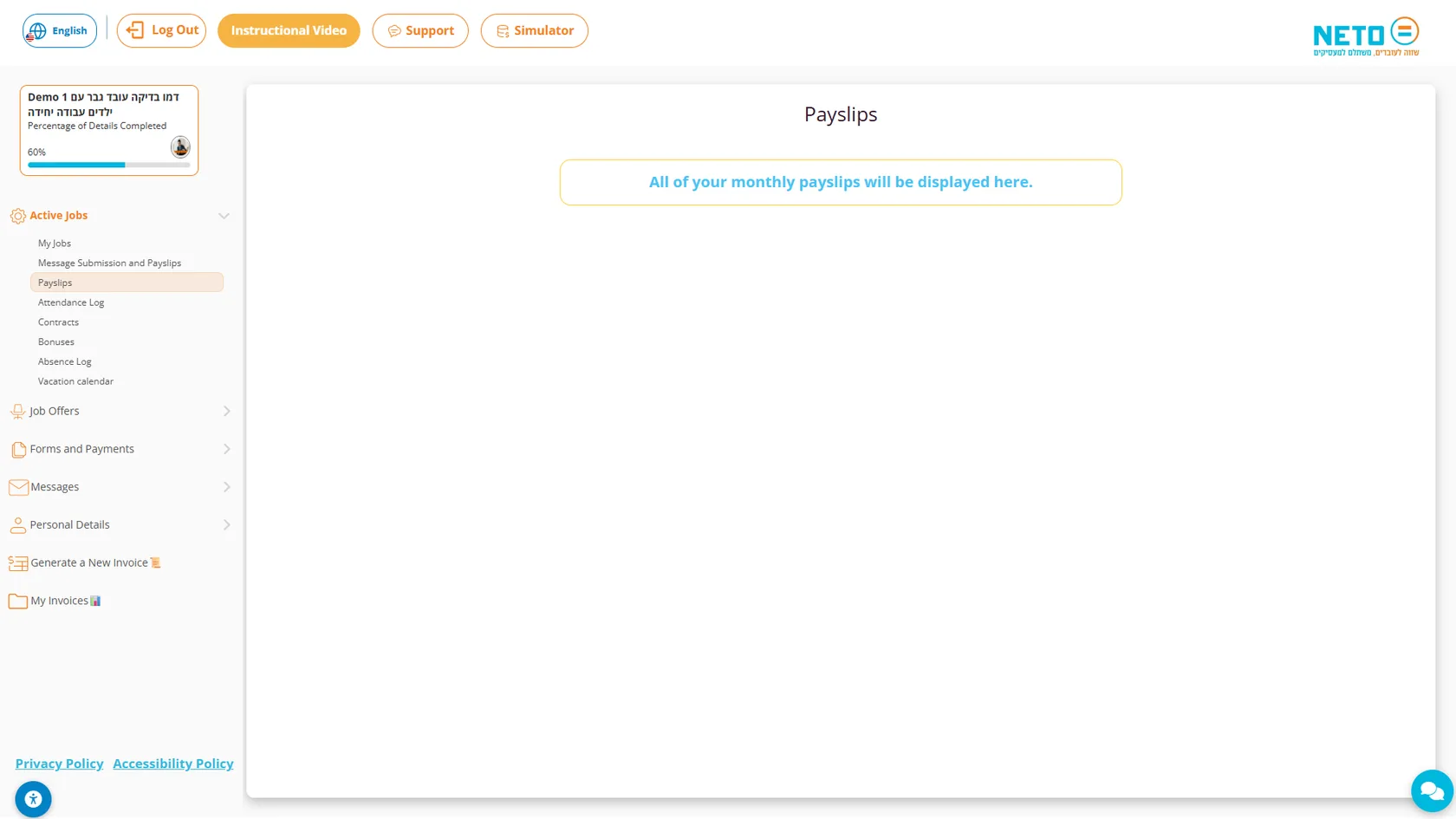
The side menu gathers all your documents: Payslips shows your monthly payslips, Contracts holds the agreements and appendices, and the Forms screen keeps the archive of your signed 101 forms · each one as a PDF with an update option for whenever something changes.
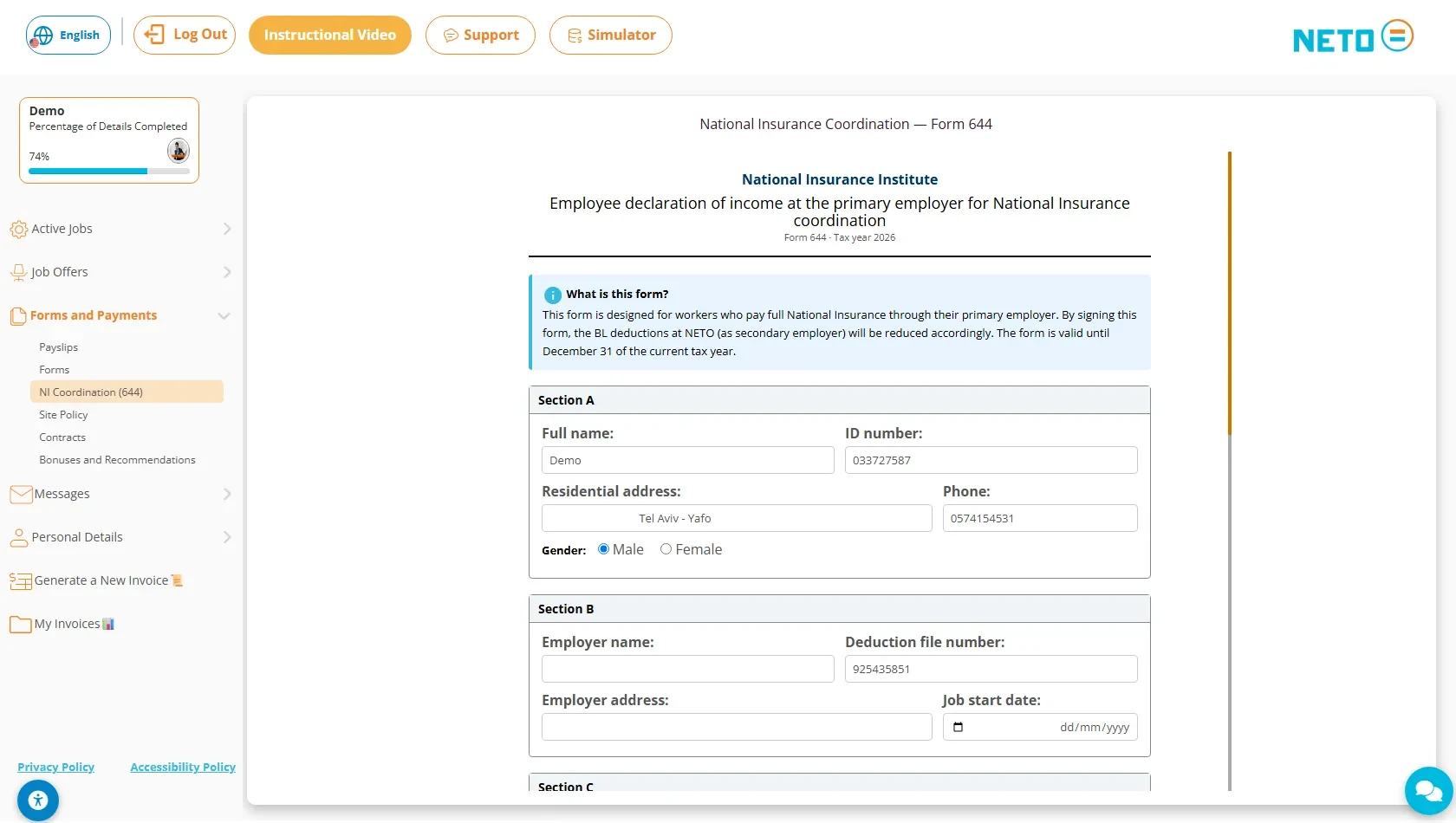
Working for more than one employer? In the Forms and Payments tab, open the National Insurance coordination form (644) and fill in four short sections: your details, the employer in the system, your main employer · including attaching your latest payslip from the main employer (required), and a declaration with your signature. Then sign and send the form.
Have a question about one of the steps? The NETO support team is available by phone, on WhatsApp and through the contact form · and we will gladly walk you through until everything is set.
The NETO support team walks you through every step · by phone, on WhatsApp or through the smart assistant in the corner of the screen.
Every section, organized by topic. Browse the full hierarchy or jump straight in.
Adjust the site to your needs
We use cookies to run the site and, with your consent, to measure traffic and improve your experience. Privacy policy
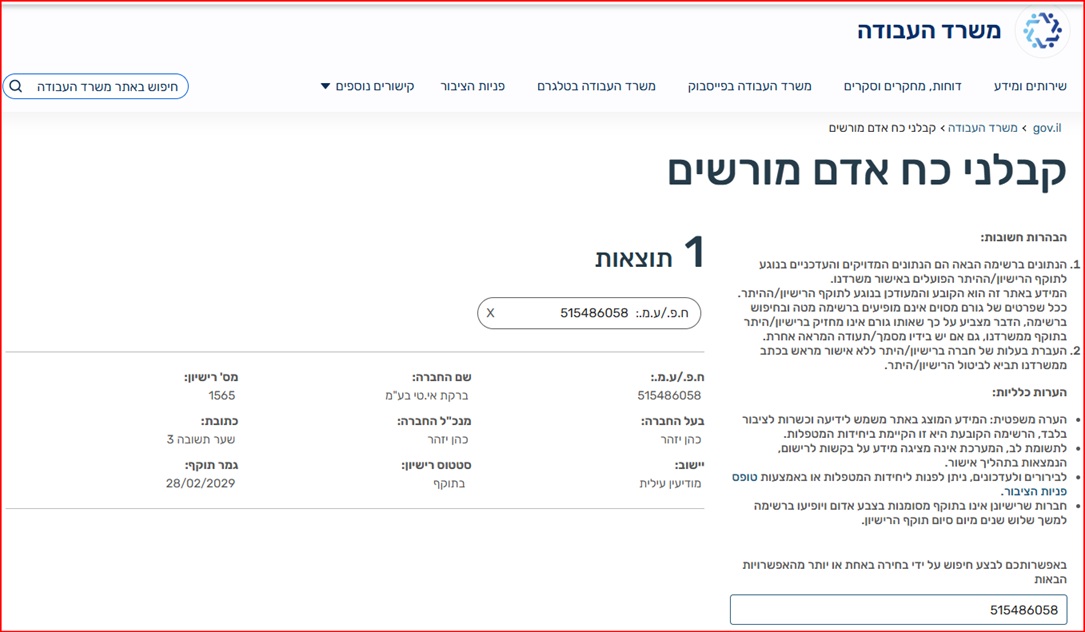
Barkat I.T Ltd · trading as NETO · is a licensed manpower company (license 1565), supervised by the Israeli Ministry of Labor.
Verify the license on the Ministry of Labor website
Full details · Manpower contractor license page →