Log in from your phone
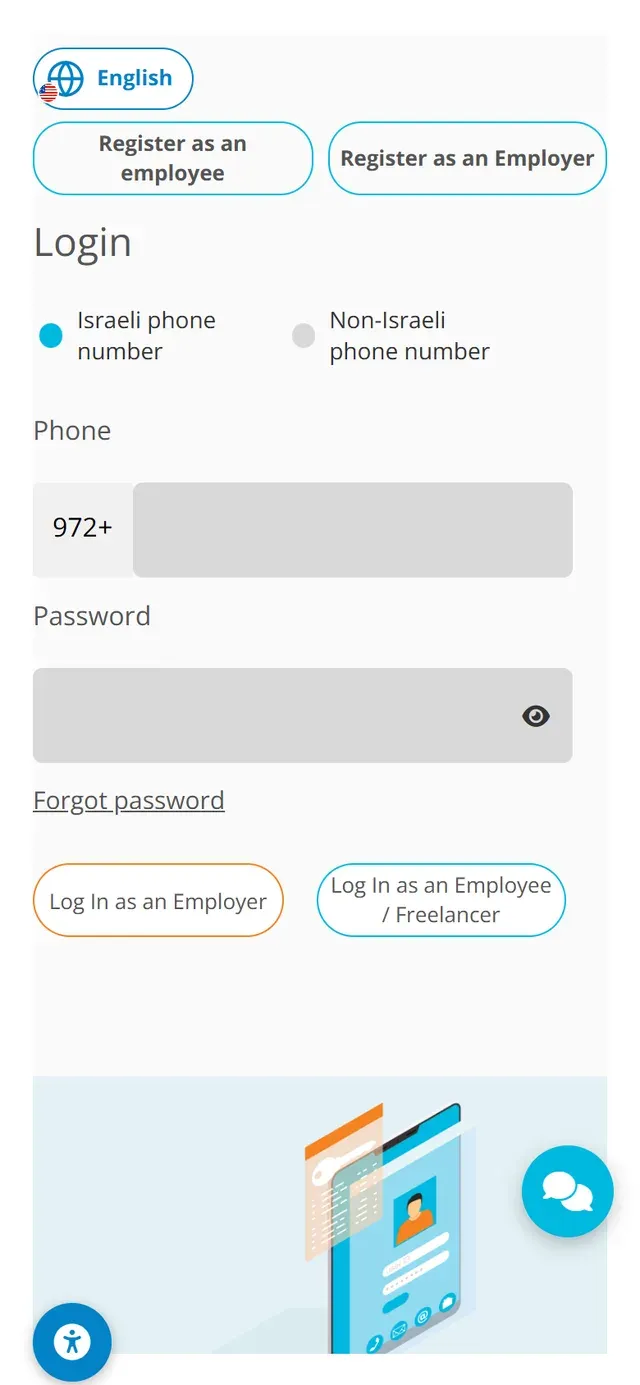
Open the NETO.LIVE login screen in your phone's browser. Keep "Israeli phone number" selected (or switch to "Non-Israeli phone number"), enter your phone and password and tap Log In as an Employee / Freelancer.

Log in to your account, or sign up in a minute.
Pick whatever works for you · we're here.
Everything about NETO · transparent and available
Pick a convenient time · we'll confirm by phone/email
Finished a job and want to get paid, but have no registered business? Issue the invoice through NETO from your phone's browser: log in, fill in the transaction and client details, approve the calculated payout and track everything in My Invoices · five short steps, with real phone screenshots.
Let's start · step 1Open the NETO.LIVE login screen in your phone's browser. Keep "Israeli phone number" selected (or switch to "Non-Israeli phone number"), enter your phone and password and tap Log In as an Employee / Freelancer.

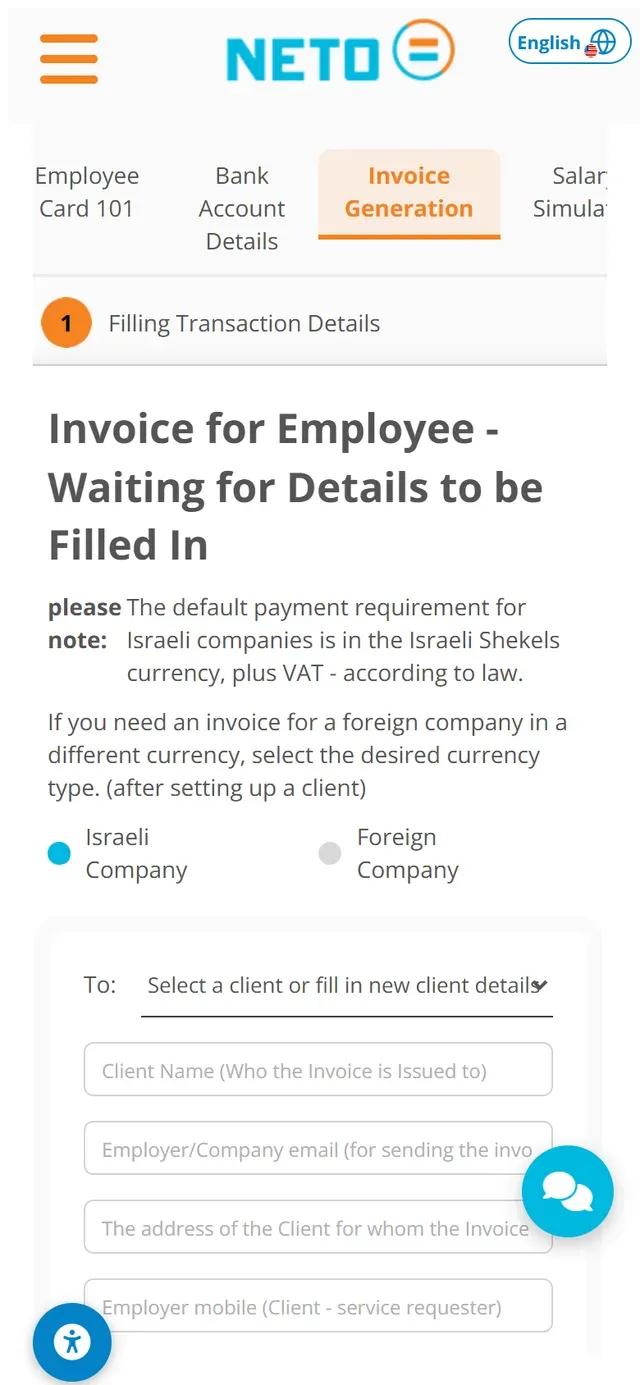
Open the Invoice Generation tab (Employee Card 101, Bank Account Details and Salary Simulation sit alongside it) and start Filling Transaction Details. The default for Israeli companies is shekels plus VAT, as required by law; for a foreign company, select Foreign Company and choose the desired currency after setting up the client.

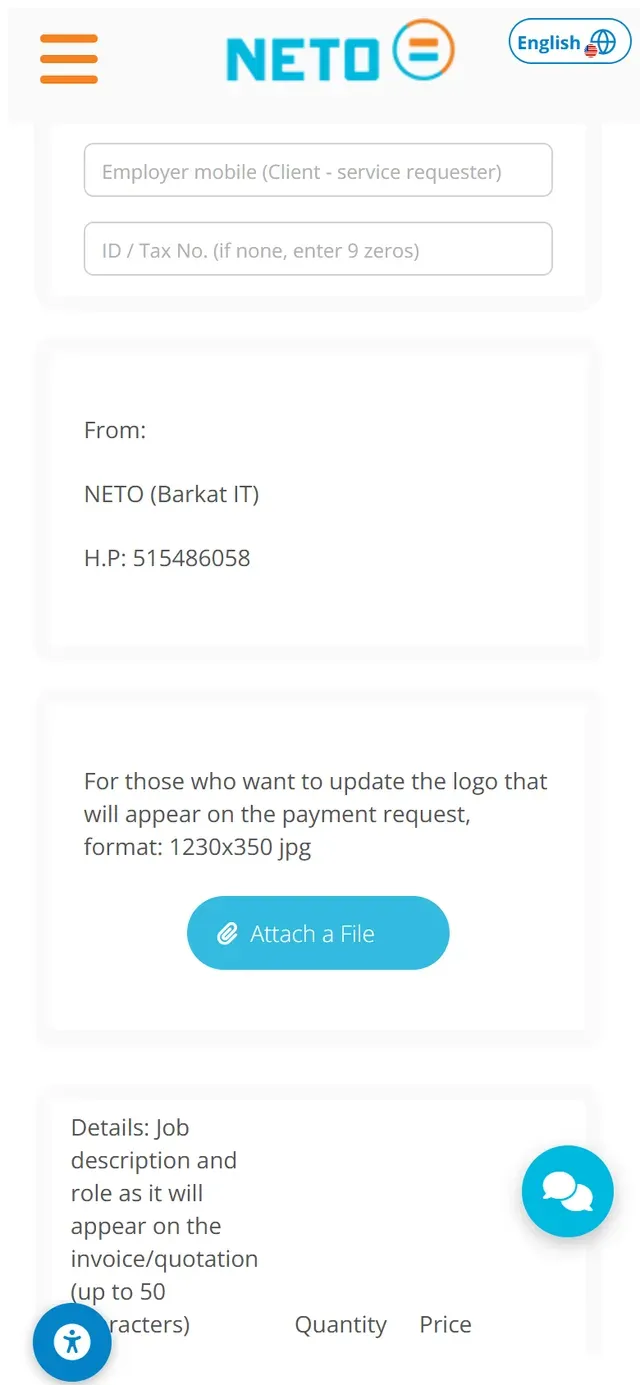
Pick an existing client or fill in new details: client name, company email for sending the invoice, address, mobile and ID or tax number (if none, enter 9 zeros). Scrolling on, the From section shows the issuer's details, you can attach a logo for the payment request, and the transaction lines take the job description (up to 50 characters), quantity and price.

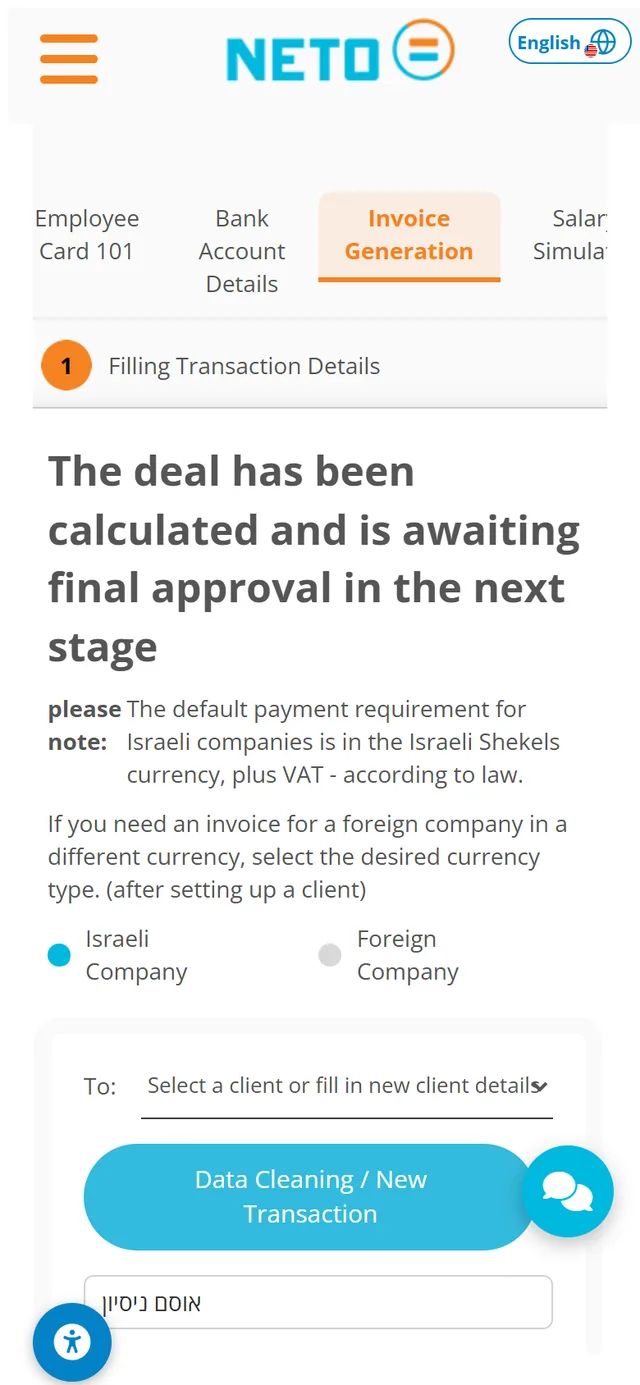
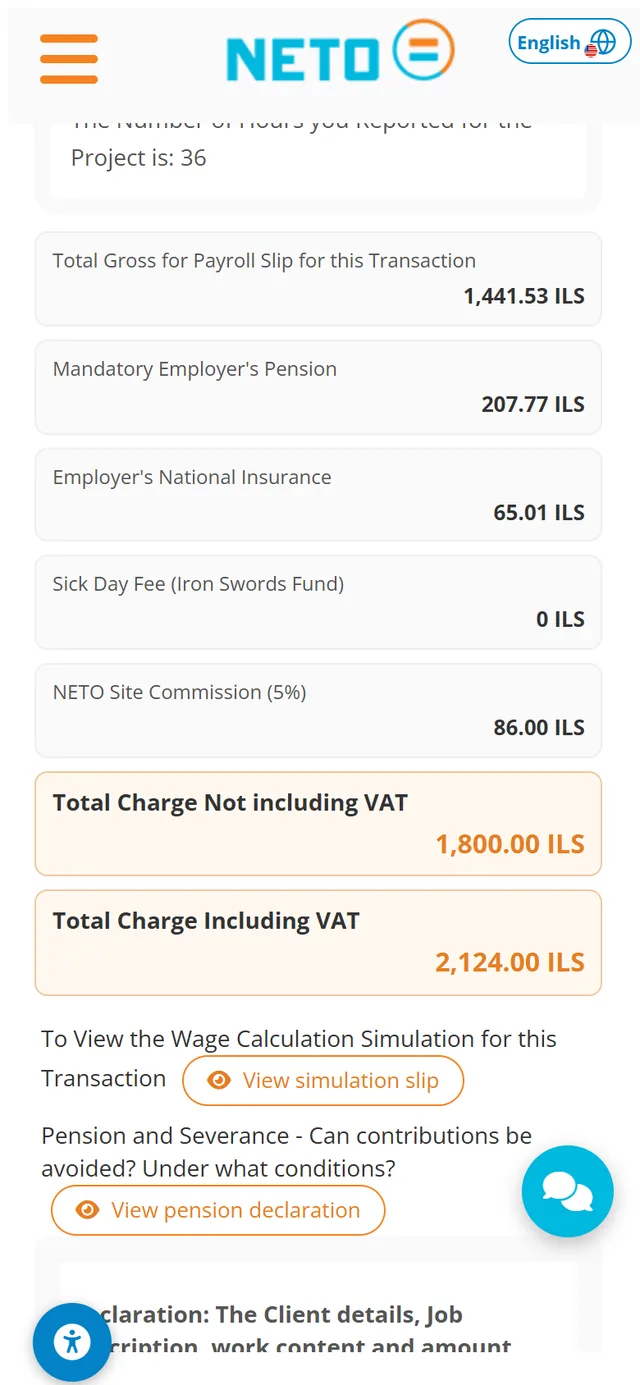
Once the transaction details are in, the system calculates the deal · and it awaits your final approval in the next stage. The breakdown keeps everything transparent: the total gross for the payroll slip, the mandatory employer's pension, the employer's national insurance and the NETO site commission · 5% before VAT.
Below the breakdown, the totals are shown not including and including VAT, next to a View simulation slip button for the full wage calculation and a View pension declaration button explaining when pension and severance contributions can be avoided.


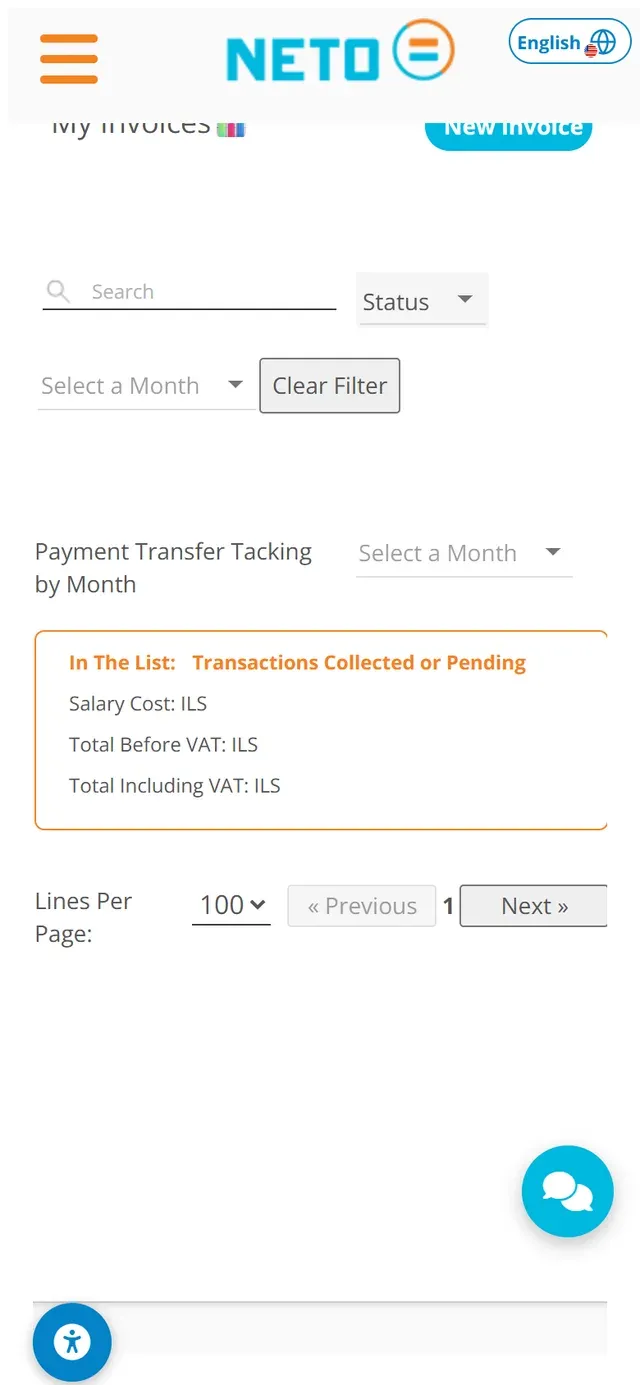
The My Invoices screen is your control panel: search, filter by status or month, and open a new invoice with the New Invoice button. Below the list, Payment Transfer Tracking by Month shows the transactions collected or pending · with the salary cost and the totals before and including VAT.

A short vertical video made for your phone.
Have a question about one of the steps? The NETO support team is available by phone, on WhatsApp and through the contact form · and we will gladly walk you through until everything is set.
The NETO support team walks you through every step · by phone, on WhatsApp or through the smart assistant in the corner of the screen.
Every section, organized by topic. Browse the full hierarchy or jump straight in.
Adjust the site to your needs
We use cookies to run the site and, with your consent, to measure traffic and improve your experience. Privacy policy
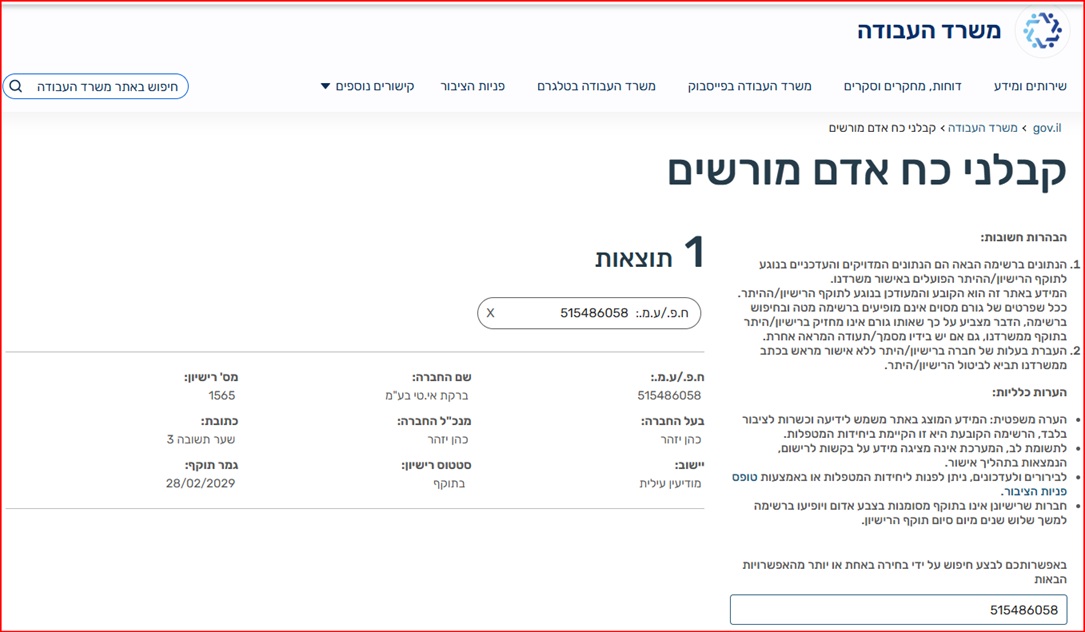
Barkat I.T Ltd · trading as NETO · is a licensed manpower company (license 1565), supervised by the Israeli Ministry of Labor.
Verify the license on the Ministry of Labor website
Full details · Manpower contractor license page →