Log in from your phone
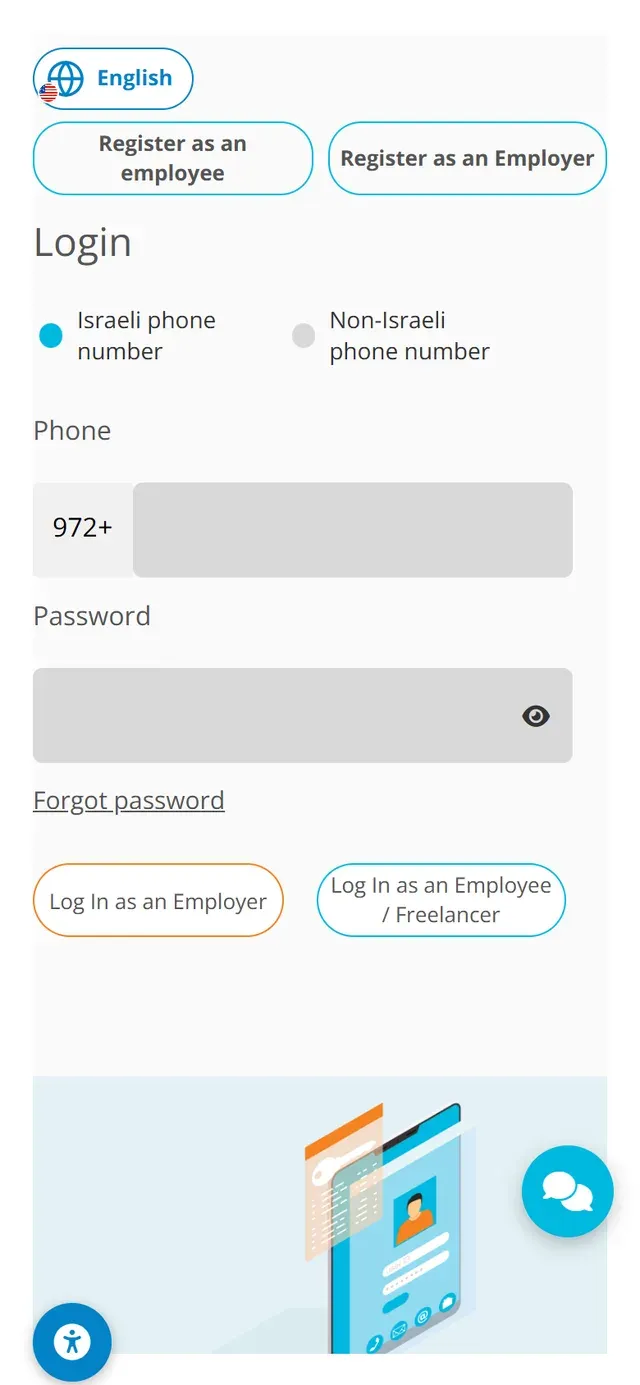
Open the NETO.LIVE login screen in your phone's browser. Keep "Israeli phone number" selected (or switch to "Non-Israeli phone number"), enter your phone and password and tap Log In as an Employee / Freelancer.

Log in to your account, or sign up in a minute.
Pick whatever works for you · we're here.
Everything about NETO · transparent and available
Pick a convenient time · we'll confirm by phone/email
Hired through NETO and only have your phone? That is all you need. Log in, get to know your dashboard, fill out and sign Employee Card 101 and receive your work agreement · five short steps, with real phone screenshots, so your salary is calculated correctly from day one.
Let's start · step 1Open the NETO.LIVE login screen in your phone's browser. Keep "Israeli phone number" selected (or switch to "Non-Israeli phone number"), enter your phone and password and tap Log In as an Employee / Freelancer.

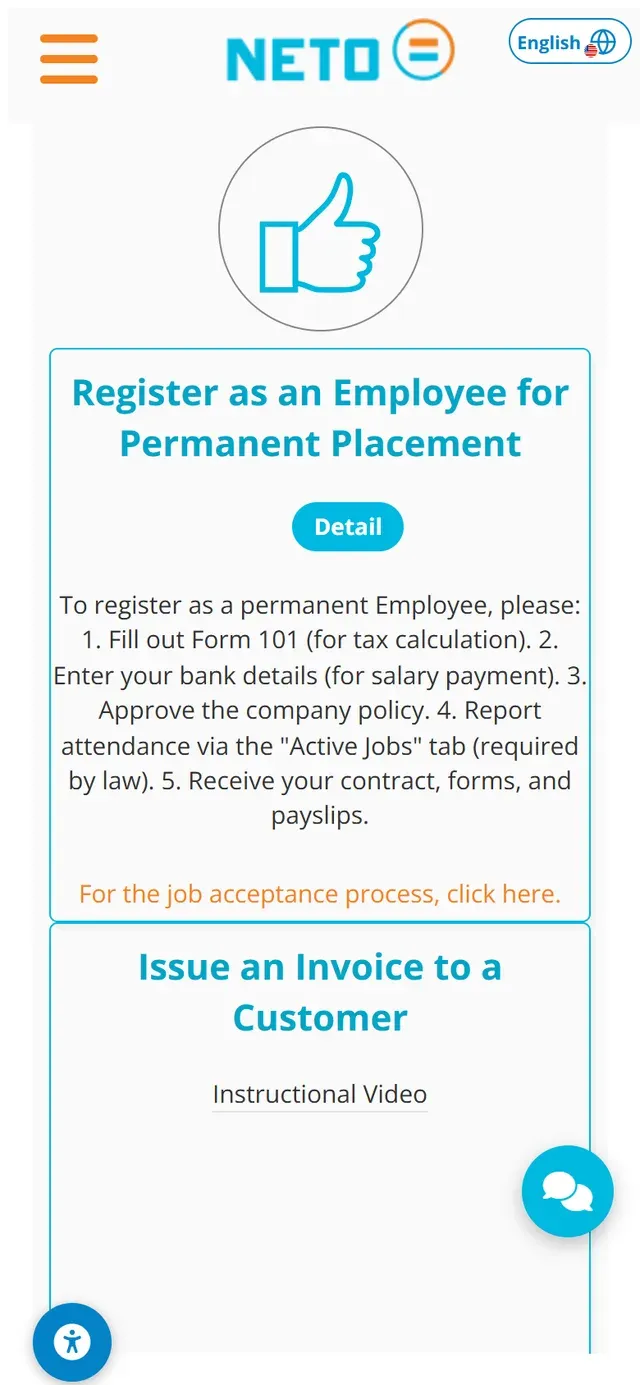
The dashboard gathers everything you can do. The Register as an Employee for Permanent Placement card lists the five onboarding steps: Form 101, bank details, policy approval, attendance reporting through the Active Jobs tab, and receiving your contract, forms and payslips.
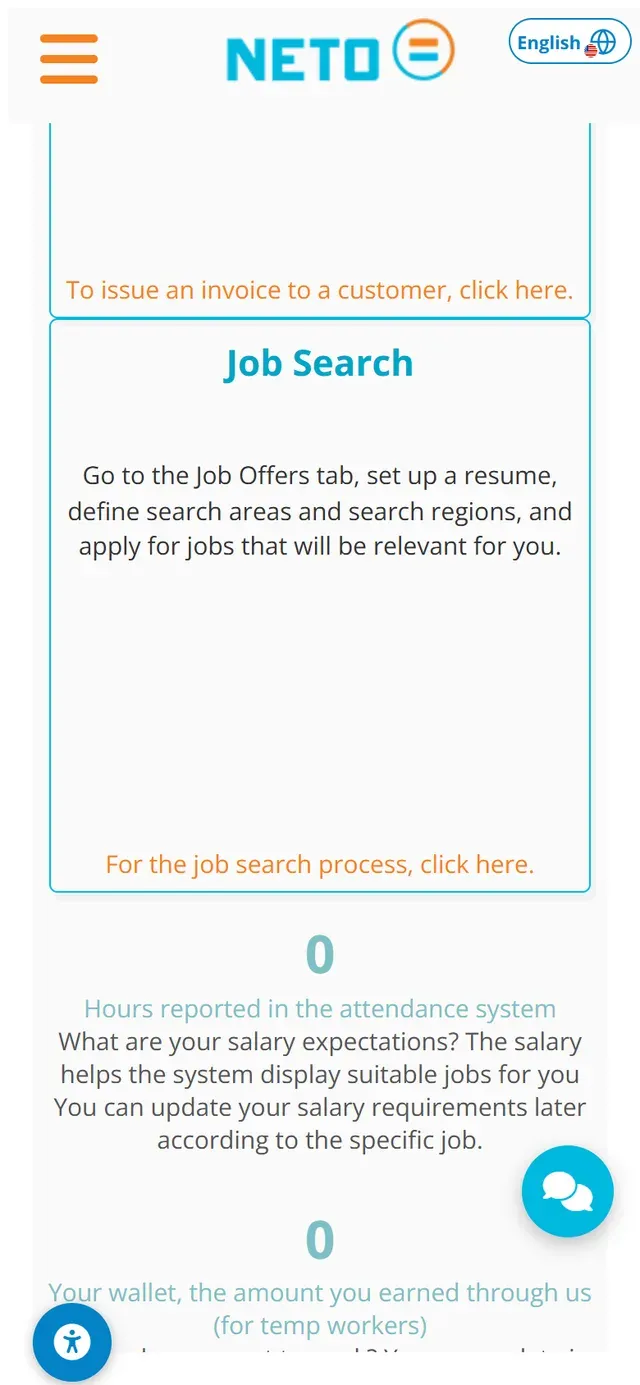
Below it: Issue an Invoice to a Customer for freelance work, and Job Search · set up a resume in the Job Offers tab, define search areas and apply for relevant jobs. Further down, live counters show the hours reported in the attendance system and your wallet · the amount you earned through NETO.


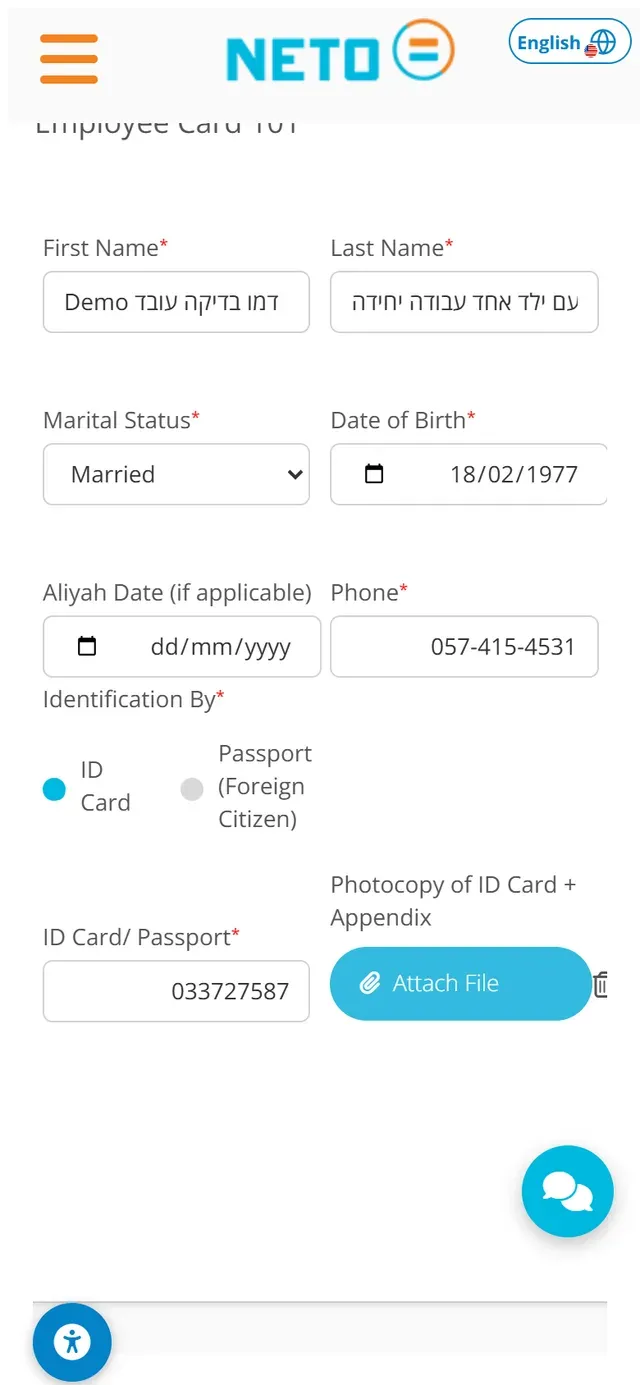
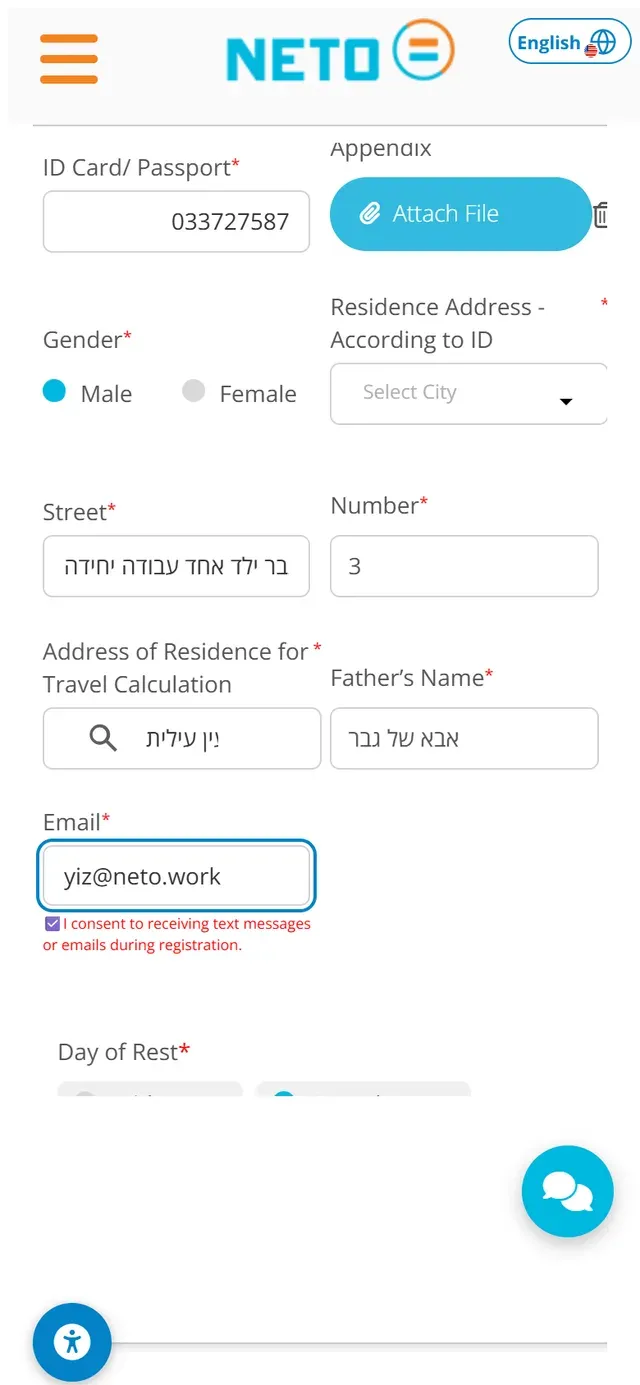
Open Employee Card 101 and fill in your personal details: first and last name, marital status, date of birth, aliyah date if applicable, phone, and identification by ID card or passport · with a photocopy attached using the Attach File button.
Scrolling on, the form asks for gender, residence address according to your ID (city, street and number), the address used for travel calculation, father's name, email and your day of rest. The taxes on your payslip are calculated from these details, so accuracy pays off · literally.


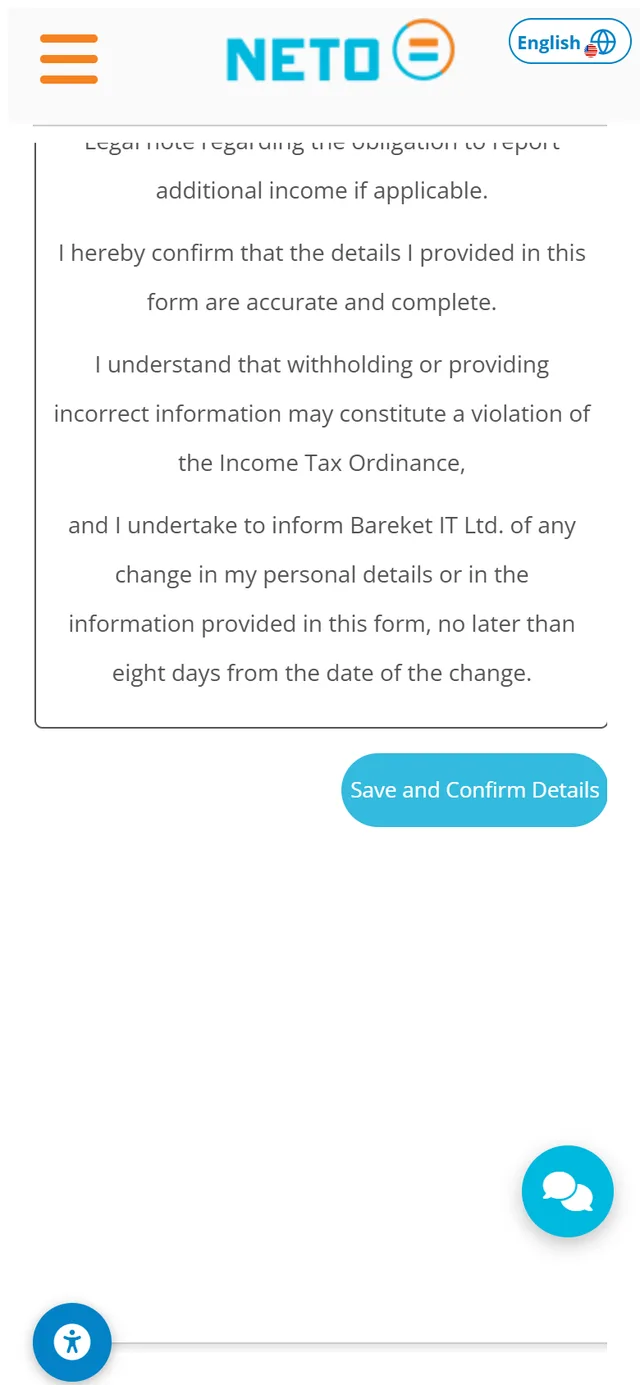
At the end of the form you confirm the declarations: the details you provided are accurate and complete, and you undertake to report any change in them within eight days. Then tap Save and Confirm Details.
After saving, the completed form opens as a PDF with an on-screen signature pad · sign with your finger inside the marked area, and the signed card is submitted. Your forms remain available in your account, alongside your contract and payslips.

As part of onboarding, the system presents the Work Agreement screen with two documents: a Notice to Employee detailing your work terms, as required by the Notice to Employee law, and the work agreement with NETO · including the employer's full details.
The interface around the documents is in English, but the agreement text itself is currently provided in Hebrew. Not sure about a clause? The NETO support team gladly walks you through it.
A short vertical video made for your phone.
Have a question about one of the steps? The NETO support team is available by phone, on WhatsApp and through the contact form · and we will gladly walk you through until everything is set.
The NETO support team walks you through every step · by phone, on WhatsApp or through the smart assistant in the corner of the screen.
Every section, organized by topic. Browse the full hierarchy or jump straight in.
Adjust the site to your needs
We use cookies to run the site and, with your consent, to measure traffic and improve your experience. Privacy policy
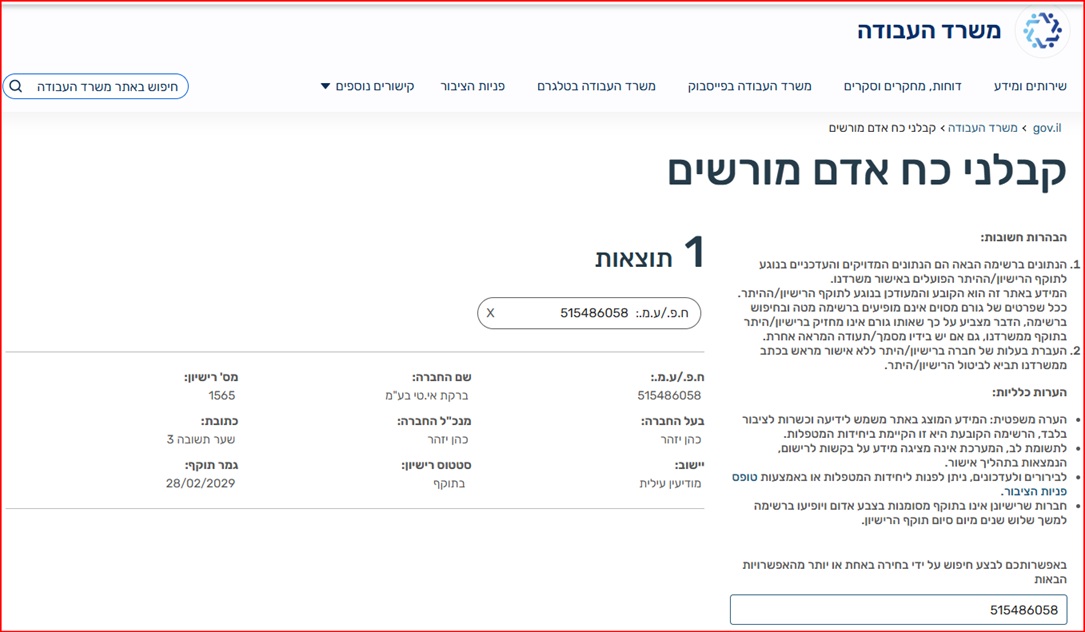
Barkat I.T Ltd · trading as NETO · is a licensed manpower company (license 1565), supervised by the Israeli Ministry of Labor.
Verify the license on the Ministry of Labor website
Full details · Manpower contractor license page →